
Table of Contents
Controlling Narration
The Floating Play Button
You will find the floating Play button in the main screen, bottom right.
The button toggles Speaking so, if speaking is stopped, it will start, and vice-versa.

The button is disabled if there was a problem initializing the Text To Speech engine. You can make the button more transparent from Settings.

The Notification Drawer and the Lock Screen
Evie can display a notification widget in the Android Top Drawer. You can use it to control narration when Evie is running background.
On newer Android versions, the notification is hidden by default, and you have to enable it in Android Settings. The same notification can be displayed on the Lock Screen. Some phone manufacturers like Samsung or Xiaomi are trying to customize the lock screen notifications, which may break Evie’s notification.
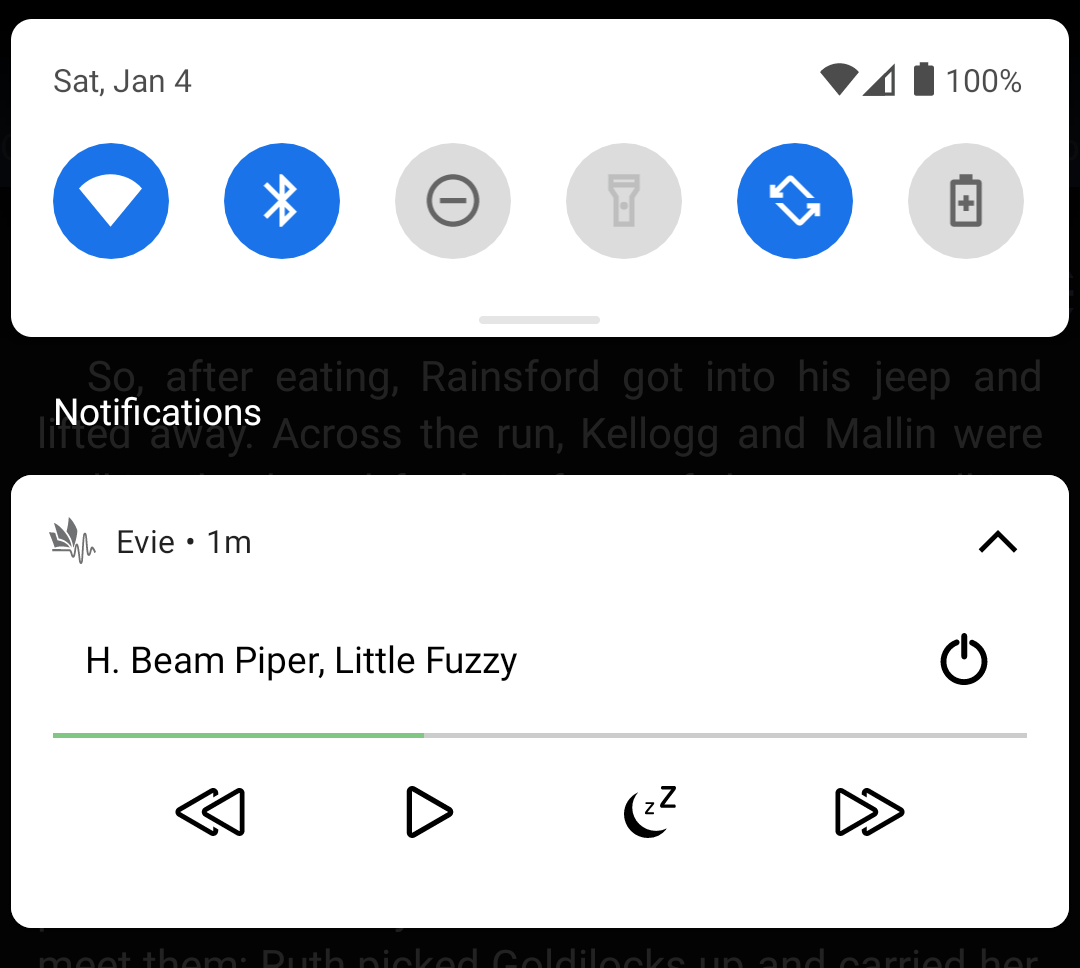
The Rewind and Fast Forward buttons on the notification will jump by approximately 30 seconds back and forth. Because the buttons always jump to the beginning of a sentence, it is possible that the actual time is not exactly 30 seconds. If your book has very long sentences, the actual skip time may vary significantly.
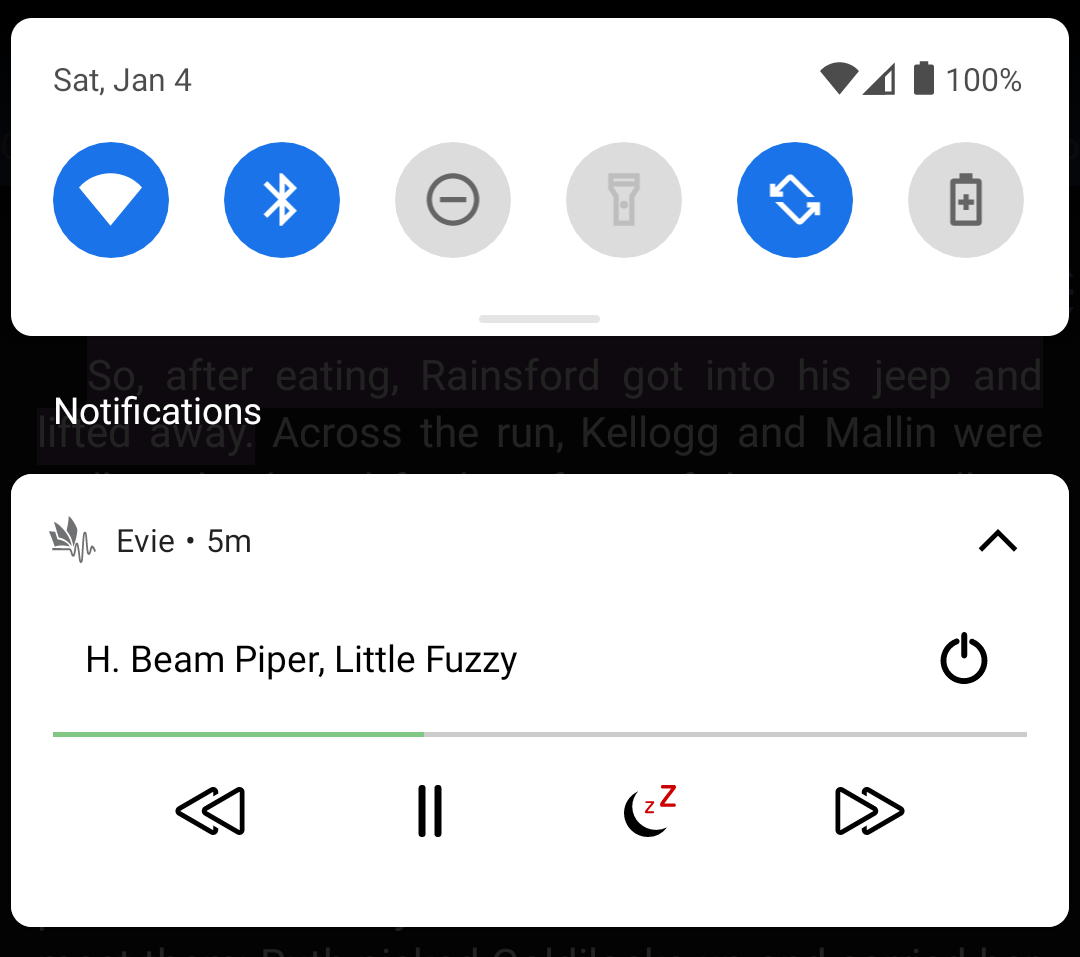
The Sleep button starts speaking and sets a timer to stop speaking after the time you selected in the Sleep Mode screen.
The Sleep Toggle stays on until you change it manually. If you stop the narration and start it again, it will stop after the timer runs out, as long as the Sleep Toggle is on.
Integration with a Bluetooth device
Modern Bluetooth devices can play audio from your phone and can control playing audio. They may have dedicated buttons that allow you to Play, Pause and Go Forward or Go Back.
The Bluetooth Play and Pause buttons work in Evie, starting and stopping narration.
The Rewind and Fast Forward buttons on the notification will jump by approximately 30 seconds back and forth. Because the buttons always jump to the beginning of a sentence, it is possible that the actual time is not exactly 30 seconds. If your book has very long sentences, the actual skip time may vary significantly.
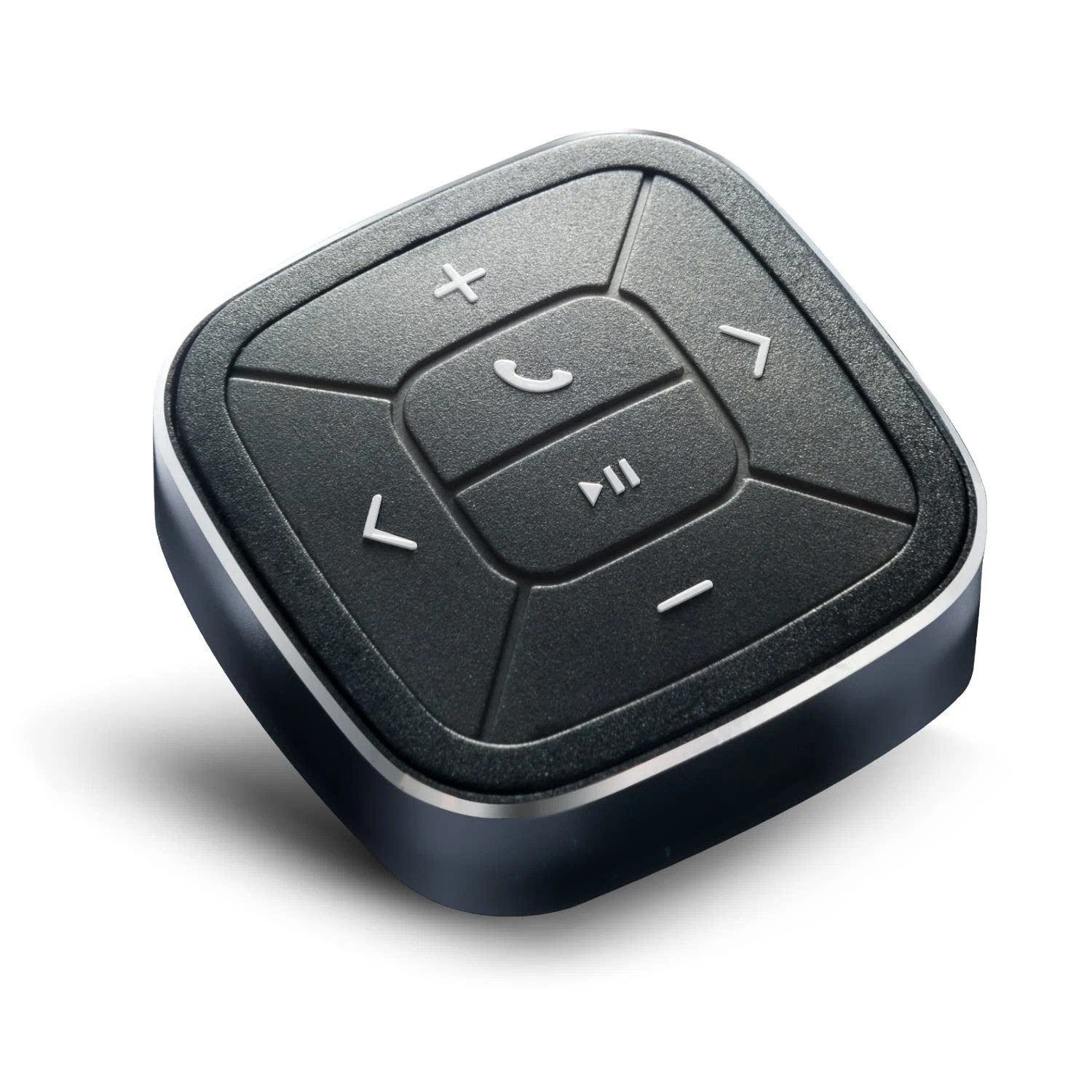
The Fast Forward button skips ahead to the first sentence that starts after at least 30 seconds. It is possible that the jump will go to the next chapter. The Rewind button goes to the first sentence that starts at least 30 seconds back. It is possible that the jump will go to the previous chapter.
Evie will also display the Book Author, Book title and the Current Chapter on your Bluetooth device, if your device supports that. If your device has a way to display the progress of what’s being played, the progress bar will tell you how far along you are in the current chapter.
Evie can automatically start speaking out loud when a Bluetooth device is connected and it will stop speaking when the device disconnects. You turn this feature on or off from Settings.
Wired Earphone Buttons
Some wired phones have volume buttons and a play / pause button, which toggle speaking.
Also, when you plug in an audio jack, Evie will start speaking and when you plug it out, it will stop speaking.
Application Features
Opening Books
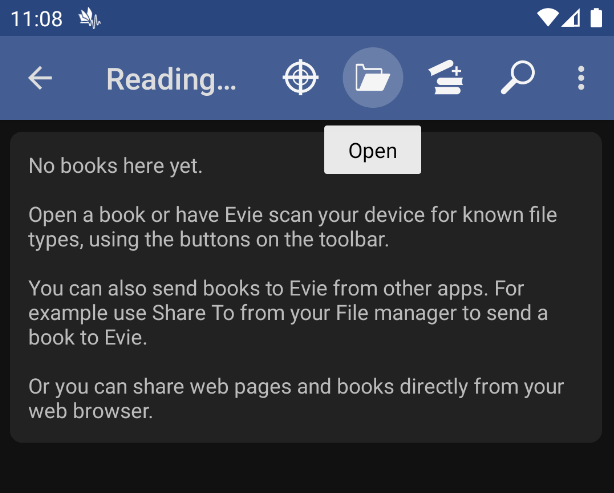
Evie uses Android’s built in File Manager to allow you to pick a book.
If you are looking for the Downloads folder, it is usually in your device’s internal memory, not on the SD Card.
You may have to use the file manager’s menu to make the internal storage visible. There may be an option in the top right menu called “Show Internal Storage”.
Starting with android 11, apps are not allowed to access the Downloads folder so it is best to download your books to a subfolder.
You can also send books or web pages to Evie, using the Share To button from other apps. For example you can send an EPUB book from a File Manager using the Share To feature. Or you can send a book and even a Web Page to Evie, from a web browser.


When Evie starts up, it will automatically re-open the last book you were reading. You can turn this feature off from Settings.
Scanning for books
Evie can auto-discover all files of openable types from your phone or a specific folder on your phone, then add them to your library with just a few clicks.
When You click the Scan button, Evie will open Android’s built in File Manager, which will ask you to select which folder to scan. Evie will make a list of all the files in that folder and its sub-folders, checking if they are already in your library, then will ask for your final confirmation before adding them.
You should not add a lot of files to Evie’s Reading List. It will slow down the app or even cause out-of-memory crashes. Evie is not a file manager. We called it a Reading List because what we intended was for you make a list of files that you intend to read in the near future. Keep your files on your phone, then add them to Evie when you intend to read them.
When adding books to the library, Evie makes a copy of each book.
That occupies some space on your main memory card. This is another reason why you should not add a lot of books to Evie’s Reading List. If you are running low on space on your memory card, remove the books from your library.
When you delete a book from the Reading List, it only deletes Evie’s copy, not the original file. Keep your original files after you add books to Evie, you may need them again in the future.
It may be possible to have duplicates in your library, if you open the same book from two different locations in your phone.

Cover Page screen
If there is a Cover Image stored in the book, it will be displayed there. Some books don’t have a cover image so Evie will display some info about the book, like Author and Title.
For PDF files, Evie uses the first page in the document as cover image.
Table Of Contents screen

This screen displays the Table of Content stored in the book. Clicking on an entry in that list will take you to the Reading Mode screen and will display the chapter corresponding to that TOC entry.
The chapter containing the last reading position is highlighted in the Table Of Content list, using a bright background color. It also displays the estimated time to finish the chapter.
The currently displayed chapter, which may be different than the current reading position, is highlighted in the Table Of Content list, using a gray background color.
For PDF documents, the TOC displays page numbers and may or may not also show chapters, but most PDF docs do not declare a list of chapters so you will only see page numbers.
At the top of the Table Of Contents you will find the Title of the current book, how far you are reading the book and an estimated time to finish the book.
Whenever you swipe into the TOC screen, the TOC will scroll so that the current chapter is visible.
This screen has a header that shows information about the current book and an estimation of the remaining time till the end of the book.
When using Amazon Polly, the Table of Content also allows you to download audio content in advance, so you can listen to it offline.
Amazon Polly and Azure Speech are cloud services so their voices are only available online. Still, Evie stores the generated audio on your phone and you can replay it any number of times without generating additional costs.
Normally, each sentence is converted to audio as reading advances, which works well even on 3G mobile data, but it does require Internet. If you know you are going to be out of coverage and you want to be able to use cloud voices, you can pre-render the audio content for one or more chapters, or the entire book in advance.
To be able to use this any time, Evie offers an Offline Mode for Polly and Azure Speech, where you can only re-play audio content already generated, but you cannot render new content.

Remaining time estimation
Speech speed varies a lot between speakers, languages, and with other factors. An English speaker says, on average, 120 words per minute in public speaking or in a conference. During a normal conversation, the average pace is 150 words per minute. A newsreader talks at around 170 words per minute. On top of that, the averages are in words, and the length of each word is also variable. In English, it is between 4 and 5 letters per word, but each language has different words per minute, and word length averages.
The generated voices have different speech speeds too, just like people. Also, you can change the speech rate between 50% to 200% making the task of calculating the exact remaining time simply impossible.
To estimate the remaining time, Evie computes an an average speech rate per voice. The more you listen with a specific voice in Evie, the better the app will be able to estimate the remaining time to the end of the book or the chapter.
If you compare the figures displayed here with the figures displayed in My Account, you will notice they are different, and this is why:
- My Account displays the time estimated on an average of 150 words per minute (a generic speaker).
- Table Of Contents displays the time based on the speed of the voice you are currently using.
Reading mode screen
The Reading Mode screen shows the content of the current chapter. To navigate through it, swipe up or down. When you reach the bottom or the top of the chapter, scrolling will stop and there will be a visible indicator that you reached the limit. If you keep dragging, the title of the next or previous chapter will show up in grey and as you keep dragging past the flip threshold, it will turn blue. If you lift your finger as the title is blue, it will flip to that chapter. You can also navigate to a different chapter using the Table Of Contents.
In Reading mode, you can jump to any arbitrary sentence and have the app speak from there. Just click or long click on the sentence and a context menu will appear. The paragraph you clicked will be highlighted using a gray background color. The first entry in the Context Menu says “Read From Here” and you can click it to have the app speak from the highlighted paragraph.
Whenever you move into the Reading Mode screen, the text will scroll to bring the last read position into view. You can disable this feature from Settings. The current last read position has a bright background color.
Evie remembers the last paragraph it was reading. Whenever you start the app, it will try to display the last book you had open, and it will scroll to the last sentence it read out loud.
Whenever you click the Floating Play Button, Evie will speak again the last sentence it was reading when you stopped.
As speaking progresses, the screen will scroll to bring the current sentence into view. If you don’t want that, you can always disabled the auto-scroll from the Context Menu or from Settings.
Scrolling is also temporarily stopped while the context menu is visible.
When in Reading Mode, a click on the text brings up a Context Menu. While the menu is displayed, scrolling is temporarily disabled. The menu allows you to jump to an arbitrary sentence in the text. The sentence you clicked is highlighted. If you select the menu entry Read From Here, reading will begin from the highlighted sentence.
When reading PDF files, you have the option to display each page either in Text Re-flow mode or in Page Layout mode. Page Layout will display the original PDF page, so its more suitable for images, tables, and visual reading. In Text Re-flow mode, Evie just displays the text extracted from the page, and will be able to highlight the verbalised sentence. This mode is better suited for voice reading and also reading on small screens, as the text will wrap at the screen width and fit your device orientation. It does not display the images, tables and other formatting elements.
Not all PDFs contain text, some of them only have scanned images and Evie will not be able to extract the text from them. Also, some PDFs do not have proper character mapping tables for non-latin alphabets, so text will not be extracted correctly even though in page layout mode the glyphs are displayed correctly. That is a problem with the PDF file.
Sleep Mode
When you swipe to the Sleep Mode screen, Evie will start speaking out loud and at the same time start a countdown timer. Not right away, it will wait a few seconds, just to give you a chance to change your mind before your device becomes noisy.
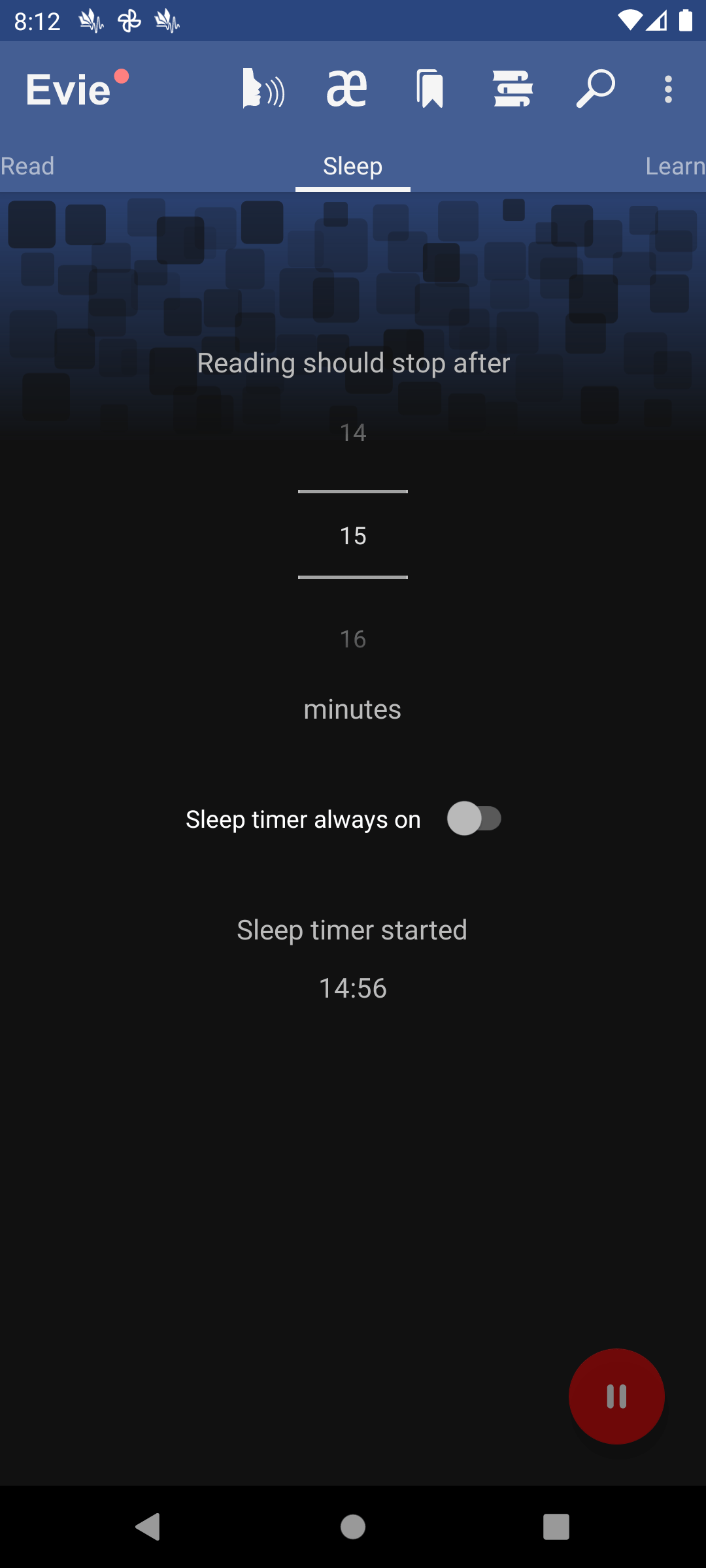
You can still always adjust the time even after the timer has started. When the entire time has passed and the timer reached zero, speaking will stop.
Evie remembers the time you selected and will always start from there every time you move into this screen.
The Sleep Timer is only active as long as you stay on that screen. If you swipe to any other screen, the timer, and speaking, will stop. If you want the sleep timer to remain set, toggle the switch that says Sleep Timer Always On.

You can also control the sleep mode from Evie’s widget in the Notification Drawer. When the sleep button is highlighted red in the widget, it means the timer is on.
After the timer has run out, and speaking stopped, the timer resets to the original value. At that point, if you click any hardware play button, like the one on your wired phones, the timer and speaking will start again and will stop after another interval.
Learn Mode
Learn mode can help you memorize a text for an exam or learn a foreign language.
In Learn Mode, you can instruct Evie to repeat each sentence multiple time, and, optionally, also wait for you to repeat.
If you check the checkbox called “Wait for me to repeat” Evie will make a pause one and a half times longer than it took the engine to read the last sentence.
The Rewind and Fast Forward buttons in the notification are moving back and forward by one sentence.
Translation in Learn Mode
Evie can translate sentences on the fly in Learn Mode.
Because this is a paid service, you will have to explicitly enable it when you want to use it, and it will get disabled if you get out of the Learn Mode screen.
This feature uses an Amazon service to translate each sentence in real time, opening up an entirely new way learning a new language.
Evie can read out loud the original sentence, then the translated sentence, repeating each one a configurable number of times.
The translation service uses credits at the same rate as the Polly Neural speech engine. This is the cost just for getting the translated text, even without narrating it out loud.
The voice selector in this screen shows just the voices for the translation language. Your current Speech Engine must support that language if you want Evie to narrate your translation out loud. You can use any speech engine in Learn Mode, it does not have to be the Polly Neural engine. It does not even have to be a cloud engine. The only requirement is that the engine has voices in both the original and the translation language, if you want to have Evie read them out loud.

TTS Settings Screen
The screen allows you to select the Speech engine, Language and Voice for the current book.
The Language was already detected from the book or document you are reading. If the detection is not correct, you can choose another language manually.
If you don’t see your language there, it means it is not supported by that speech engine. Select a different engine, or get one from the Play Store.
When you change the language, the list of available voices changes accordingly so you can select the preferred voice for each language. Evie remembers the Language and Voice selection for each book and it will automatically switch to it when you resume reading the book.
Here you can also change the narration speed by adjusting the Speech Rate. A value of 200% means twice as fast as 100%. A value of 50% means half as fast. Each engine has different minimum and maximum supported rates.
Evie allows you to tweak the amount of time the Speech Engine pauses in punctuation marks in sentence and between sentences. Not all TTS engines support this feature. Keep in mind that the pause between sentences may be long than what you select here, as explain the Text To Speech page on this website.
Bookmarks Screen
The screen allows you navigate between bookmarks, edit and export them.
Evie automatically remember the last 10 moments when you started a Sleep Timer.
The Sleep Bookmarks are only saved when a sleep timer runs to the end. If you manually stop the narration, it will not be saved.
The Bookmarks screen allows you to return quickly to the position where the timer started to help you find the last thing you remember before falling asleep.
A bookmark in Evie has two roles.
On one hand it allows you to mark a specific place in the text so you can go back there quickly.
On the other, it allows you to add your own notes relative to that point in the document.Bookmarks can be categorized using colors. There’s no predefined meaning attached to the colors. Use the colors as you see fit.
All bookmarks and their notes can be exported so you can use them outside of Evie. A simple example would be to send them over email, so you can use them, for example, when writing a review on some book you read.
When you remove a book or document from the Reading List, any saved bookmarks and notes will be deleted.
Pronunciation Editing
The Pronunciation editor allows you to teak the way that the text is pronounced or even to silence out text. You can replace multiple words if you want or even entire sentences. You can optionally use regex to match the text to be replaced, and you can optionally use IPA to specify how the replacement should sound.
The pronunciation replacements are applied within each sentence of your document. Click around the document to see how Evie splits the text into sentences. The part of the text that highlighted when you click is the unit that Evie feeds into the Speech Engine. We’re going to call that a “sentence” even though it may not be a full sentence, technically.
If the text does not end with a sentence mark, then the next new-line character is considered as sentence terminator.
If some sentences are very long, Evie will break them up to keep each one under 3000 characters.
Evie will always split the text into sentences the same way, every time you open the book.
When reading, Evie applies all pronunciation replacements to each sentence before it reads it out loud.
Keep the number of replacements relatively low, to avoid speech delays caused by applying replacements.
Pronunciation Editing Screen
The speech engines may make mistakes, especially with foreign words or person names.
Using the Pronunciation Editor allows you to change the way a part of text sounds.
There’s no recipe for that, as it will depend on the Language of the text and the Speech Engine you use.

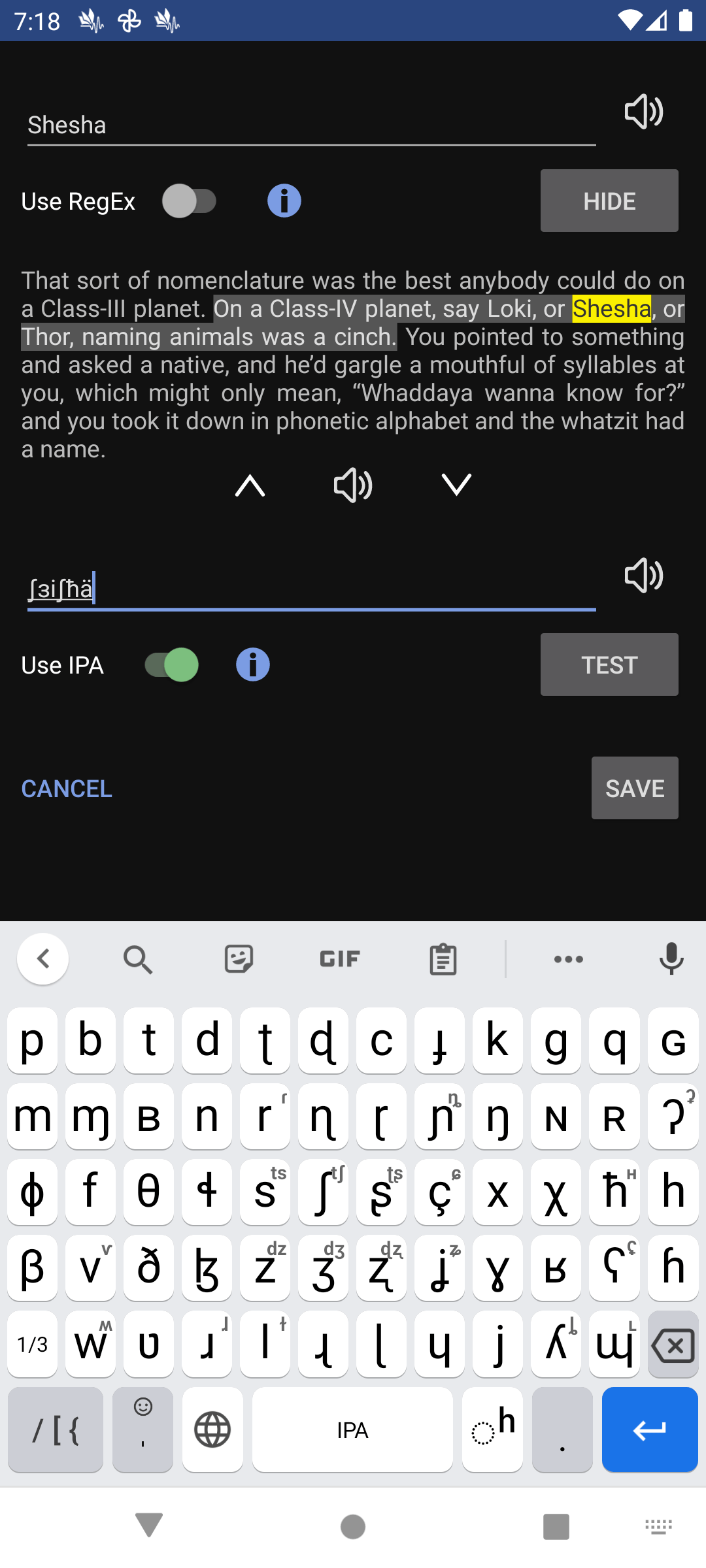
Sometimes it may be possible to use regular alphabet letters to specify the replacement, but not always.
For example, the name “Iosif” in English may be mispronounced, but replacing it with “Yoseef” may get you close enough to the correct pronunciation.
In other, more complex, cases, you may want to use the IPA alphabet to specify the correct pronunciation. This web page will offer some help. For example the name “Iosif” may be represented as “ɪ̆osif” using IPA.
When applying replacements without regex, Evie does Case Insensitive matching (Both “Iosif” and “iosif” will match).
Also, remember that matching does not consider word boundaries.
The sequence “ball” will match the full word in the text “The ball is red” but it will also match the part of the word ballroom in th text “Walked into the ballroom”.
If you want to only replace occurrences that represent full words, you need to use Regex expressions (see below).
Silencing text
If your document contains repetitive text, that you don’t want to have narrated, you can use the Pronunciation Editor to silence it out.
That’s as easy as leaving the “New Pronunciation” text box empty.
You can silence individual words, or entire sentences.
For example, say you are reading a PDF document that repeats some text at the top of each page.
PDF files don’t have the concept of Headers and Footers, so it is impossible for Evie to detect which text should or should not be narrated.
You could define a replacement with where the “Original” text box contains the repeated text and the “New Pronunciation” text box is empty.
Some more advanced use cases will require the use of Regex expressions.

Regex expressions
Using Regex expressions in the pronunciation Editor allows you to specify complex rules for which text should be replaced.
That means the expressions should be used in the “Original” text box, not in “New Pronunciation”.
This website offers great tools for testing your Regex expressions: Regular Expressions 101.
Remember Evie uses the Java regex flavor, it is case sensitive, and replaces all occurrences inside the sentence.
Here are a few useful examples of regex expressions that you may want to use:
- Full words
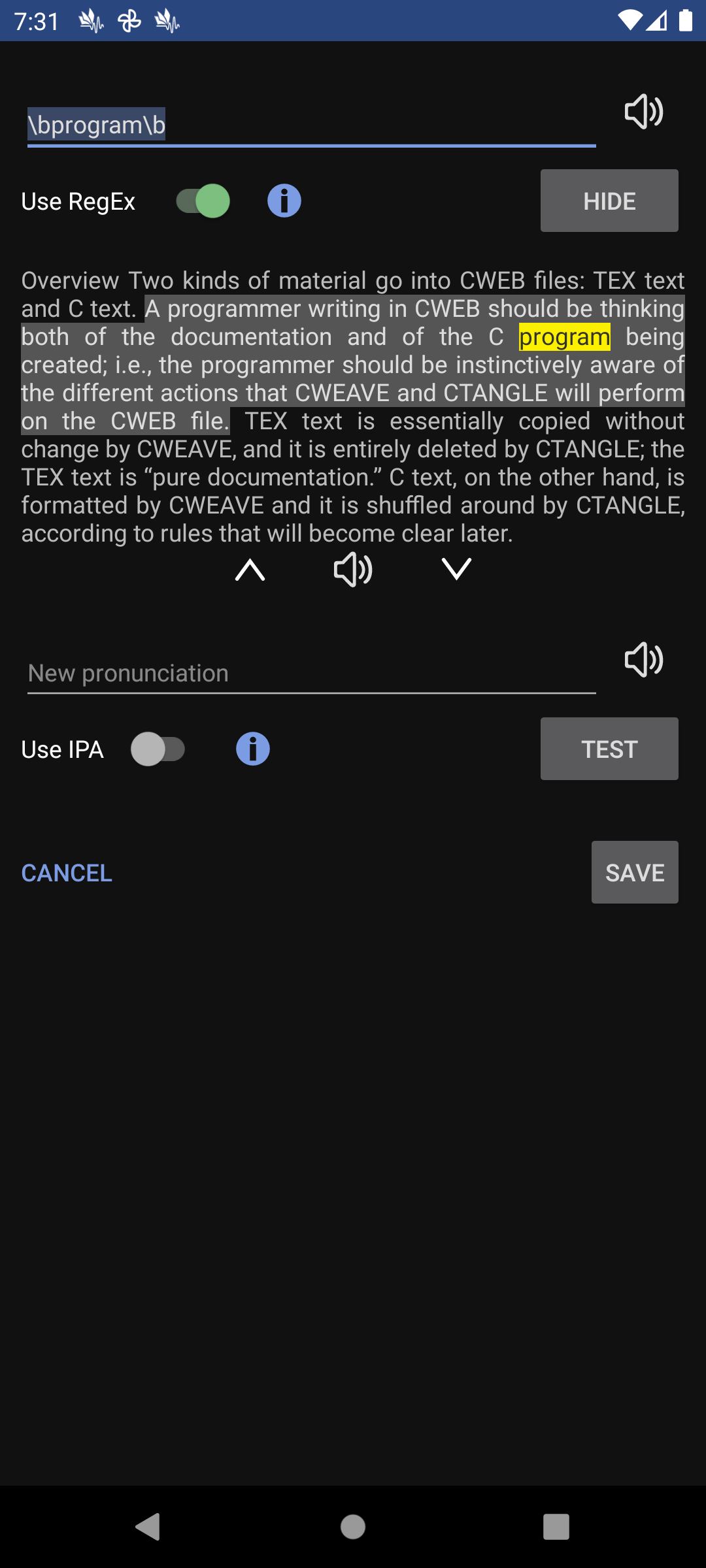
You can use the word boundary matcher “\b” to tell Evie to replace a sequence of letters only if they are not part of a longer word.
Use \bword\b to make sure the word is only replaced if it is not part of a longer word.
The “\b” matches any word boundary, like spaces, punctuation marks, quotes, and so on.
You can also use “\b” to match text that starts with some sequence: “\btext”, or ends with some sequence “text\b”.

- Case insensitive
Regex expression matching is case sensitive by default, so “Ball” will not match “ball” when regex is enabled.
To force matching to be case insensitive you can use “(?i)” in front of the “Original” text. - Text with numbers
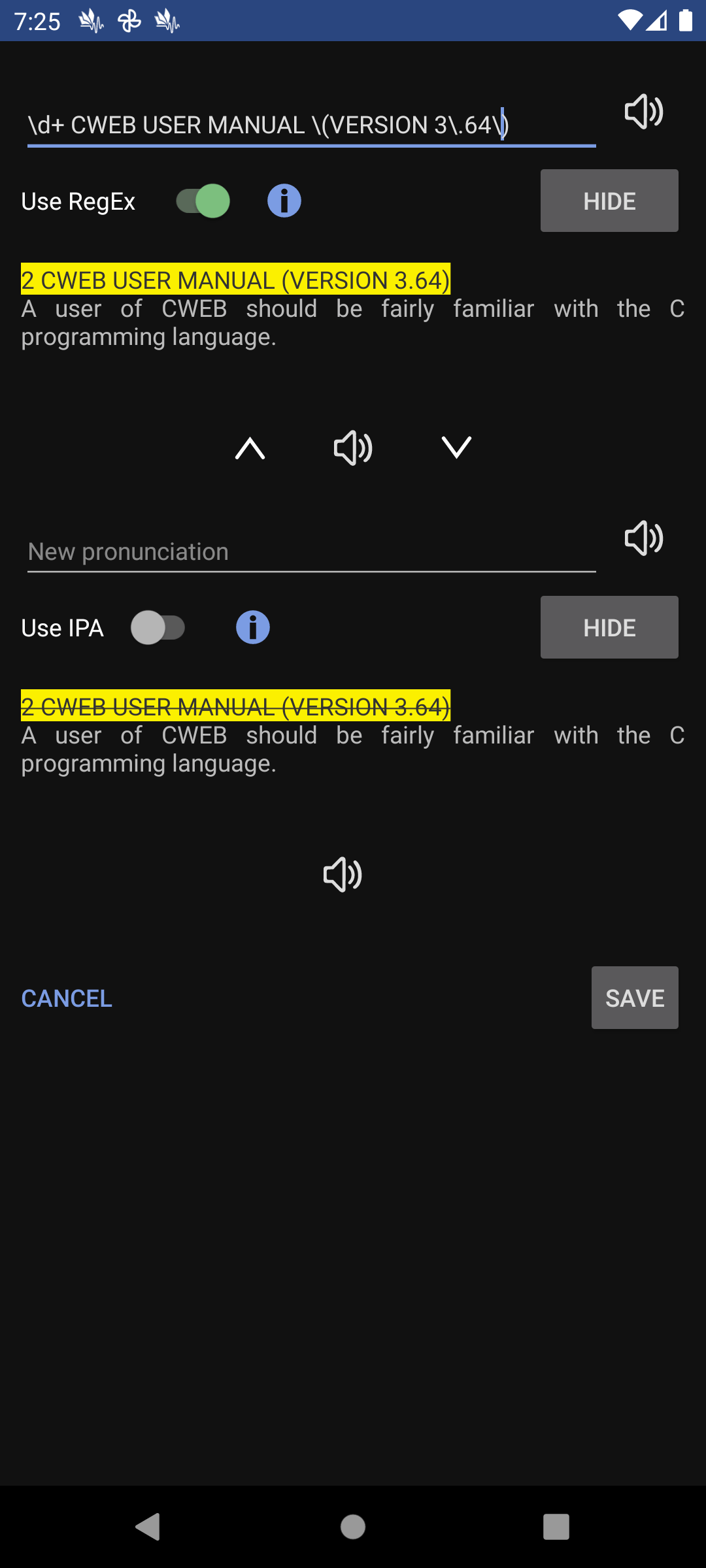
Some documents may repeat some text containing changing numbers at the top or bottom of each page.
For example, imagine a header containing the text “Page ” followed by the page number: “Page 35” then “Page 36”, so on.
You can replace all occurrences with just one regex containing a matcher for the number: “Page \d+”, where “\d+” means “any sequence of one or more digits”.
- Text at the start or end of sentence
Consider the same scenario as above, where you want to get rid of the header saying “Page 123” on every page.
What if the text “page 123” happens to also legitimately come up in the body of some pages?
You can make sure it will only be replaced if it sits by itself in a sentence.
You can use the specifier “^” for the beginning of the sentence and “$” for the ending.
The expression “^Page \d+$” matches a sentence that starts with the word Page and it ends with a number of at least one digit.
Test these ideas at regex101.com to see how they work.
 Evie
Evie 