
Your phone probably already came with a Speech Engine. Here’s how you can You can configure it and use it in Evie.
The instructions here are for the Android native Speech Engines, not for the cloud based Speech Engines that come with Evie.
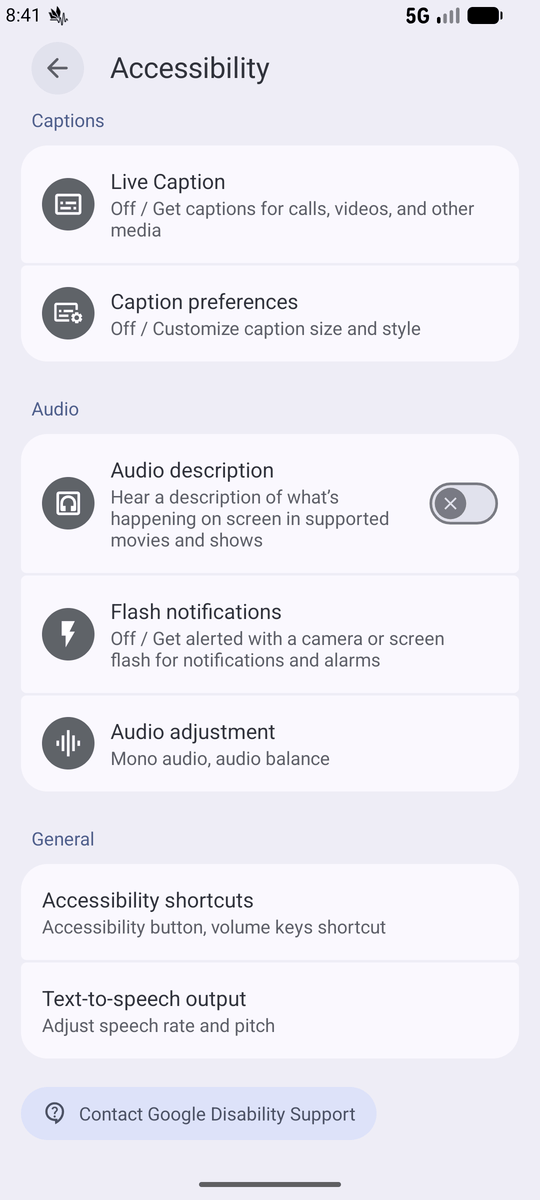
1. Navigate to Text-to-Speech settings:
Open your phone’s Settings app, scroll down and tap Accessibility (or General management on some models), then select Text-to-speech.
2. Set your Preferred Engine:
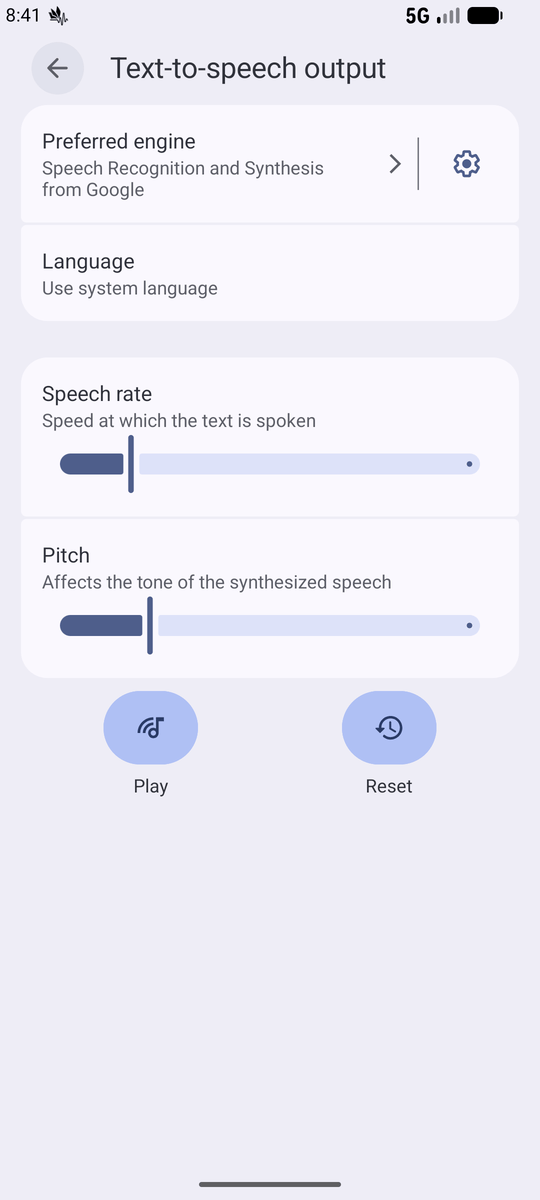
Tap Preferred engine and select your preferred Speech Engine (Google Speech Services, Samsung TTS, so on).
3. Download Voice Data:
Missing voice data is the most common cause of error.
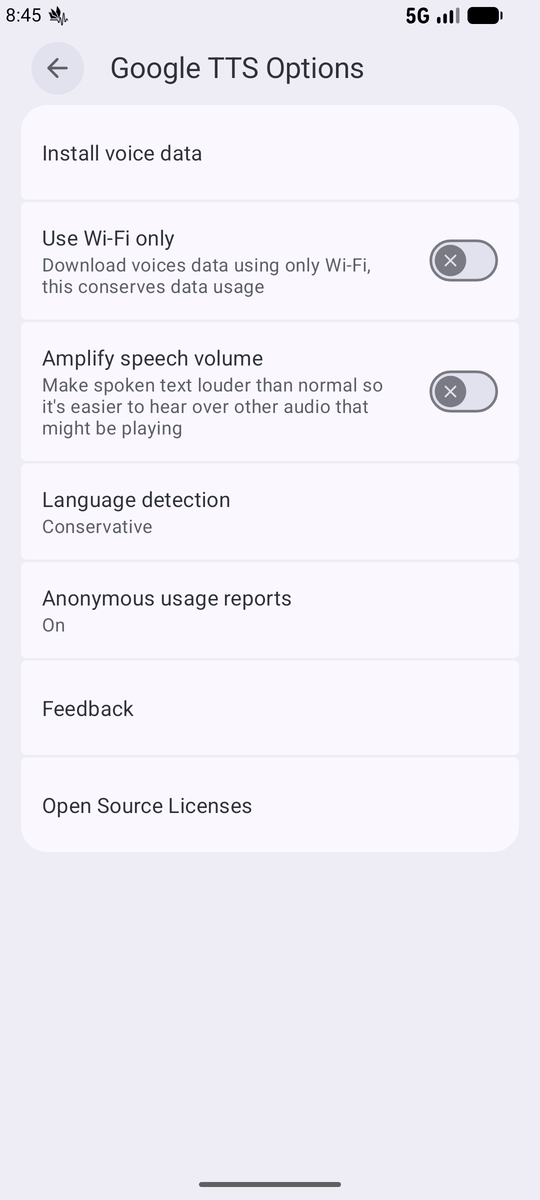
Tap the Settings gear icon next to “Preferred engine”, then tap Install voice data.
Find your language, and tap the download arrow next to it.
The engine cannot read text until it has a voice pack installed for your specific language.
Evie will allow you to select the language and the voice later, but first you must make sure it works, here in Settings
3. Test your Speech Engine:
At the very bottom of the main Text-to-speech settings screen, you will see a Play button.
When you tap it, the engine will read a brief sample sentence aloud so you can hear exactly what the current voice sounds like.
You can also use the Speech rate and Pitch sliders right above that button to speed up or change the tone of the voice, and then press Play again to test your adjustments.
If the Speech Engine works here, it will also work in Evie.

